

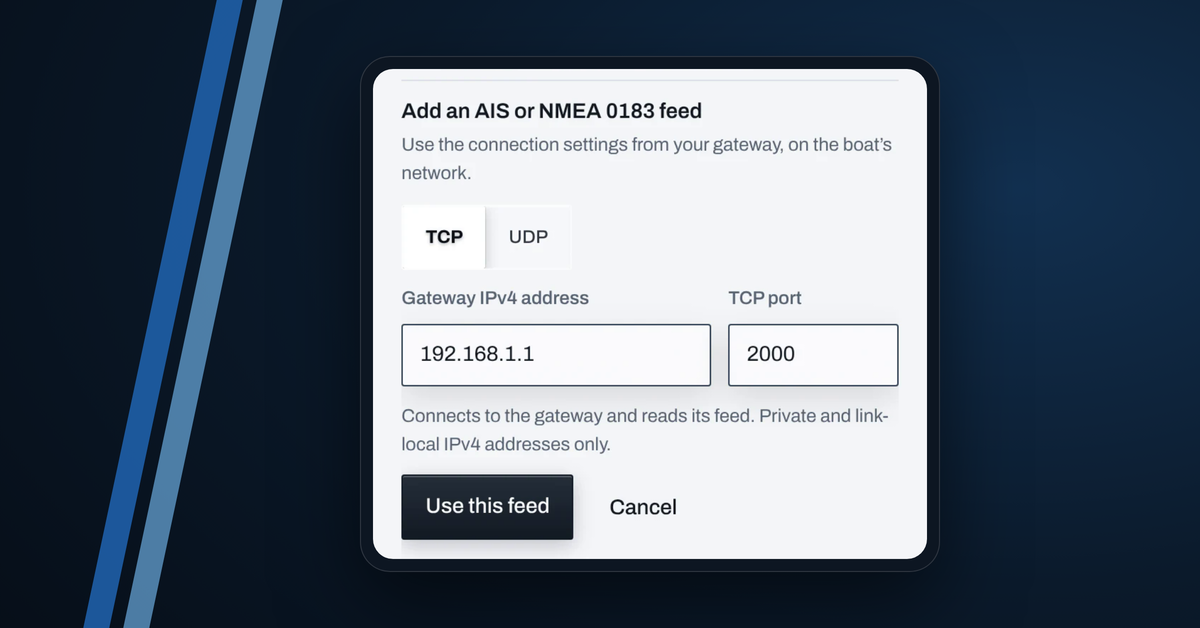

The AIT3000 is an AIS transponder with its own Wi-Fi. It sends its GPS position, course, speed and the AIS boats around you as NMEA 0183. Telltale can record that feed on an Android phone or tablet, an iPhone or an iPad. The steps are the same on each; where Android and iOS differ, this guide says so.
1. Join the AIT3000's Wi-Fi
Power on the AIT3000. On the phone or tablet, open Settings, then Wi-Fi (on Android: Settings, Network & internet, Wi-Fi), and join the AIT3000's network. Its name and password are in the AIT3000 manual.
The network has no internet. That's normal: stay joined.
- iPhone and iPad may say "No Internet Connection" under the network.
- Android may show "Connected, no internet" or ask whether to stay connected. Choose to stay connected (the wording varies by phone, for example Keep Wi-Fi connection or Yes), and tick "Don't ask again for this network" if it's offered.
Save your race and forecast before you leave the dock: Take your race offline.
2. Open Record and add the feed
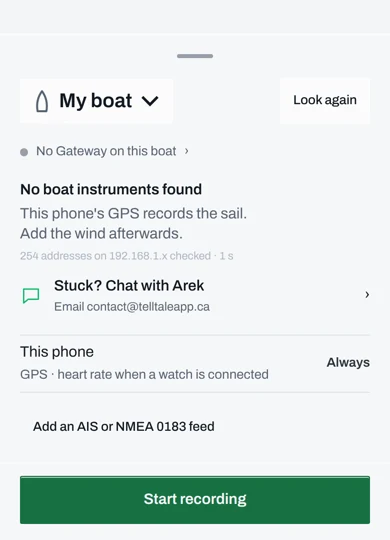
Open Telltale, signed in, and tap Record. Pick your boat. Under the boat's sources, tap Add an AIS or NMEA 0183 feed.
3. TCP, address 192.168.1.1, port 2000
Choose TCP. Type 192.168.1.1 in Gateway IPv4 address and 2000 in TCP port, then tap Use this feed.
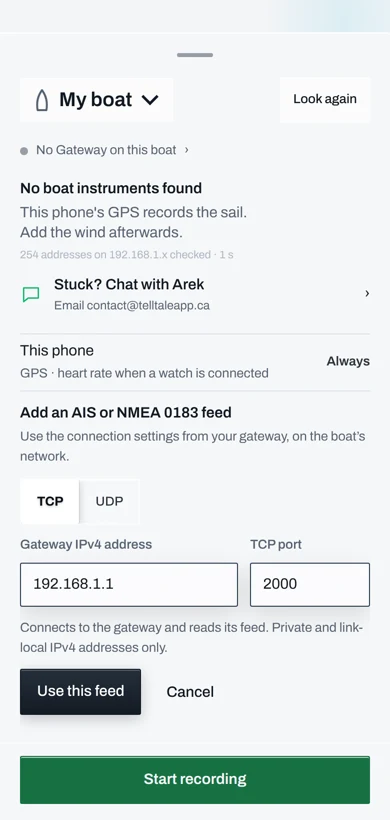
These are Digital Yacht's published settings for its Wi-Fi products. Units made before 2017 used 169.254.1.1 instead; if 192.168.1.1 gets nothing, check the AIT3000 manual.
Use TCP, on Android as on iPhone and iPad. The iOS app can't receive the AIT3000's UDP broadcasts, and TCP is the setup this guide covers on every device.
4. What success looks like
The form closes and the feed shows as chosen: Manual AIS / NMEA 0183 feed, TCP · 192.168.1.1:2000, Not yet receiving · Starts with your recording. That's expected: Telltale connects when the recording starts.
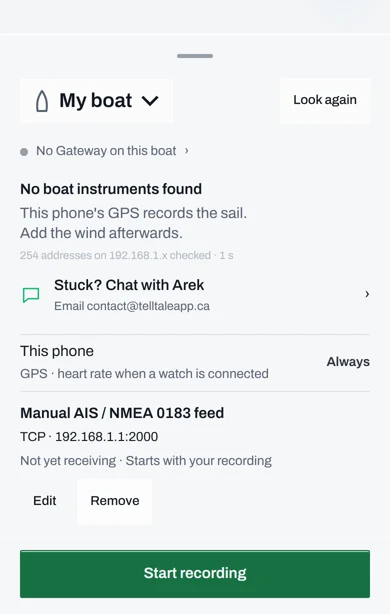
Start the recording. Telltale records what the AIT3000 sends: your position, course and speed over ground, heading if the AIT3000 has it, and the AIS boats in range. Your own AIS keeps working in Racing mode, which only stops outside data.
Do a two-minute test at the dock, stop it, and open it in Sessions. If the track is there, the feed works.
On a tablet with no GPS
A Wi-Fi-only iPad, and many Android tablets, have no GPS of their own.
- With Telltale 1.9.6 (out on Android, on its way to iPhone and iPad): while the tablet records the AIT3000, the map shows your boat from the AIT3000's position, within about ten seconds of starting.
- With the version before it, the map uses only the tablet's own location, so it won't show your boat, even though the recording has the AIT3000's position. Keep a phone with GPS for the map.
Check Google Play or the App Store for an update before you go.
One device at a time
The AIT3000's TCP connection takes one device. If a tablet is using it, a phone can't connect to it at the same time. Pick one device to record the AIT3000; the other can still record its own GPS.
If nothing comes in
- Check the Wi-Fi. Settings, Wi-Fi: you must still be on the AIT3000's network. Phones drop networks with no internet. Rejoin and turn off Auto-Join (iPhone, iPad) or Auto-connect / Auto reconnect (Android) for other networks nearby.
- Android: turn off mobile data. With mobile data on, Android can send Telltale's connection out over mobile data instead of the AIT3000's Wi-Fi, because that Wi-Fi has no internet. Turn mobile data off in quick settings, then stop and start the recording.
- iPhone and iPad: allow Local Network. Settings, Telltale: Local Network must be on.
- Check the address and port. 192.168.1.1 and 2000, TCP.
- Free the connection. Close any other app or device that's connected to the AIT3000 over TCP.
- Power cycle the AIT3000, wait a minute, rejoin its Wi-Fi and start again.