

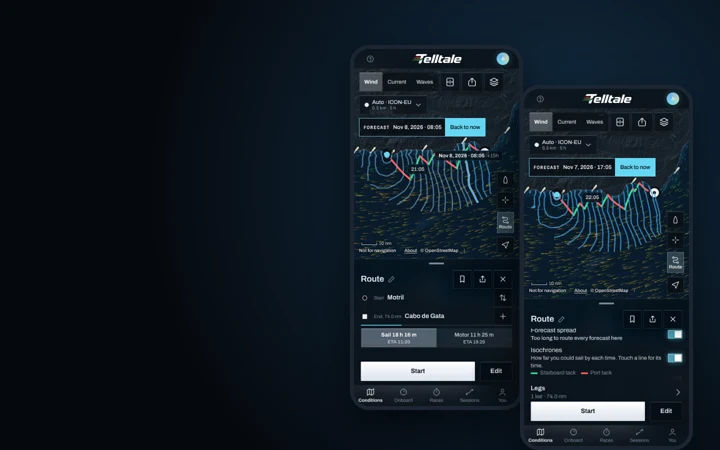

A weather route is only as good as what you tell the router about your boat, and how you read what it shows you. Here's how to get times you'll actually sail, and what everything on the map means.
1. Plan a route
On the map, tap Route, then tap your start and your destination. Telltale works out a weather route in the newest forecast and shows two answers: Sail and Motor, each with its time and ETA. Tap one to see it on the map.
2. Read the map: the blue lines and the colours
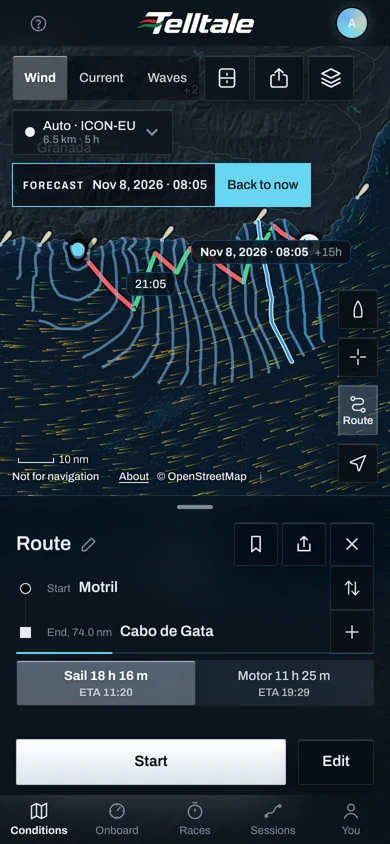
The blue lines are isochrones. Each one shows how far the boat could sail by that time, going any way, in this forecast. They grow from the start like ripples, and they bunch up where the boat is slow: upwind, in light air, against the current. The route is the quickest path through them.
- Touch a line to see its time and how long after departure it is, for example "+15h".
- The times along the route are clock times, so you can see where you'll be at dinner or at dawn.
- The route's colour shows your tack: green for starboard, red for port. Blue is a stretch under engine. Each colour change is a tack or a gybe.
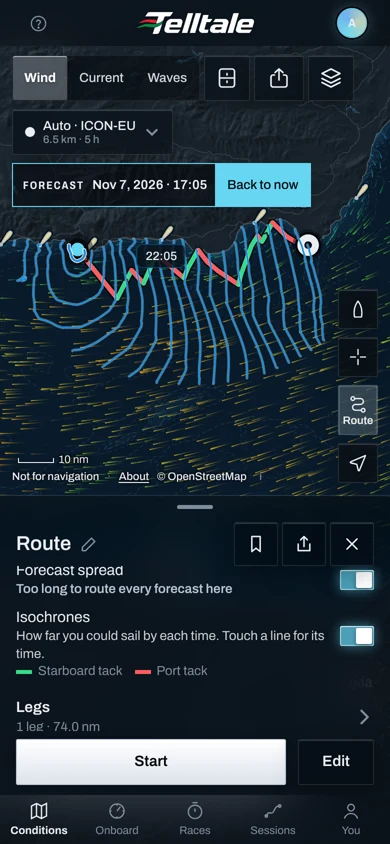
The route sheet now says all of this under Isochrones, with a switch to turn them off when you only want the route.
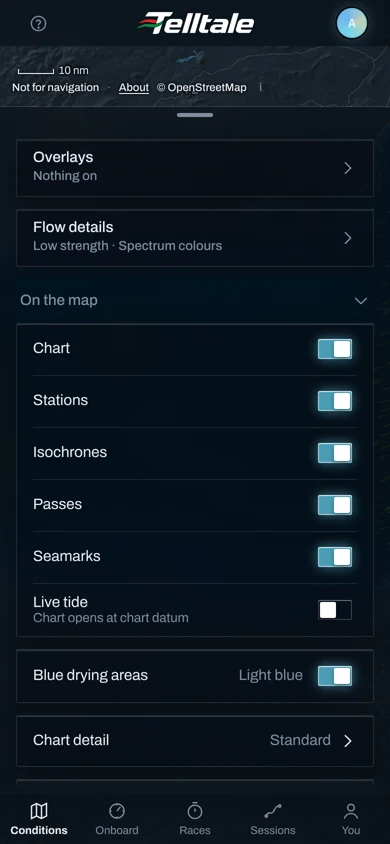
The same switch is in Layers, under On the map. Whichever you use, Telltale remembers it.
3. Tell the router about your boat
Open your boat, then Settings, then Boat. Three fields matter most:
- Draft. The router only goes where the chart shows enough water for your draft plus the margin. Confirm it.
- Safety margin. That's the water you want under the keel. Telltale raises it where the chart's survey is poor, and the sheet shows the safe depth it will use.
- Motoring speed. It sets the Motor answer and the motoring stretches.
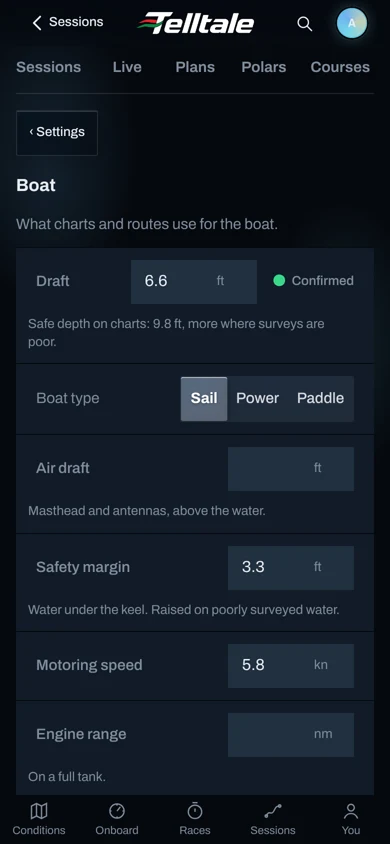
Fill in Air draft too, but check bridges and power lines on the chart yourself. The router doesn't check them yet.
4. Pick the right polar
The polar is your boat's speed at each wind angle and wind speed. It drives every time the router gives you. On your boat's Polars tab, choose the Reference polar that matches your boat: your designer's table, a class polar, or your own file.
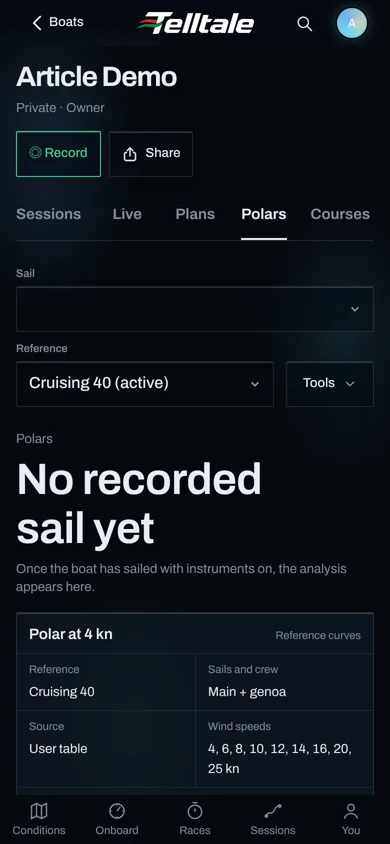
Then read the ETA as your best case. A polar is what the boat can do with a fresh crew trimming well, not what she averages over a night watch. In this year's Route du Rhum, the fleet sailed at 81 to 84% of polars built from its own best speeds, and routes planned at 100% gave ETAs 15 to 37% early. Cruising shorthanded, plan on 80 to 85%: on an 18-hour passage, that's about three hours more.
Record your sails with instruments on and the Polars tab compares what you actually sailed against the polar, so you'll learn your own number.
5. Choose when to leave
Scroll the route sheet down to Departure Time. The bar shows every departure over the coming days, coloured from faster to slower, and the line under it gives the best one. Drag the knob and the route redraws for that time.
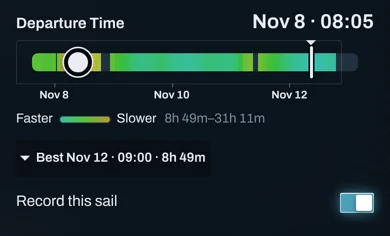
On this route, leaving now means an 18-hour beat. Waiting for the breeze to shift makes it under 9 hours. Tap the Best line to use that time.
6. Check how much the forecasts agree
A route is only as good as its forecast. Before a long passage, turn on Forecast spread in the route sheet. Telltale sails your route in each forecast model and draws them side by side. Where the lines run together, the forecasts agree. Where they split, the weather is uncertain, so keep your options open there. On a long passage it may say it's too long to route every forecast; check the spread on each part instead.
Race pages do this for the whole course. A race's Brief tab shows Routes by model for a typical boat in your division, with the spread of finish times.
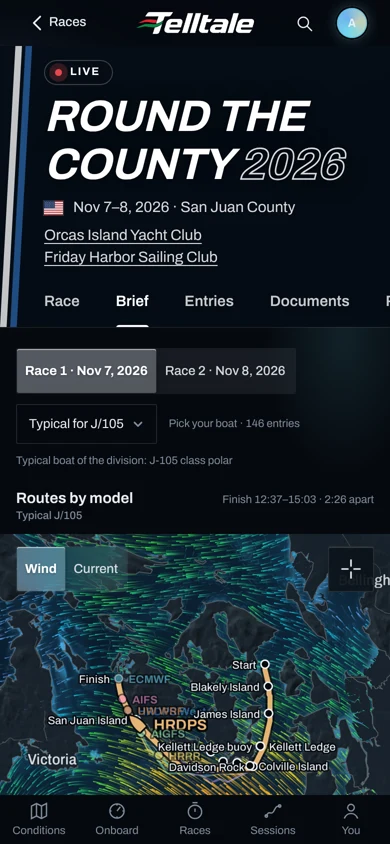
Pick your own boat in the menu to see the same routes at your speed.
7. Under way
Tap Start to follow the route. Telltale shows the bearing and distance to the next waypoint, your ETA, the distance to go, the speed you're making toward it, and your speed. Plan again whenever a new forecast comes in. Twice a day on a long passage is a good habit.
Tap Save route, then Download for offline before you lose signal. Without a connection the iPhone and Android apps keep following the route, and with Pro they can reroute from the downloaded forecast. A new forecast needs a connection, so plan again when you're back in range. See Take your race offline.