

Sails in both directions
Send from Telltale or bring an existing activity aboard.
A Telltale sail can go to your Strava account as a Sail activity. In the other direction, your own Strava activities can become sessions on the boat you choose. These are useful at different points: send a sail after recording in Telltale, or import a day you recorded elsewhere and already saved to Strava.
You can choose new water activities to come into the boat automatically. Original-file import is another way in: download the activity from Strava and bring the file to Telltale yourself. Choose the path around where your recording already lives and whether you want to select each sail.
Send your sails to Strava
Choose when a sail leaves Telltale.
Open Settings → Account → Strava, or open the Strava settings page directly. Press Connect with Strava and complete the connection on Strava’s page. Under Send my sails, choose On their own for automatic sending, or One by one to decide separately for each sail.
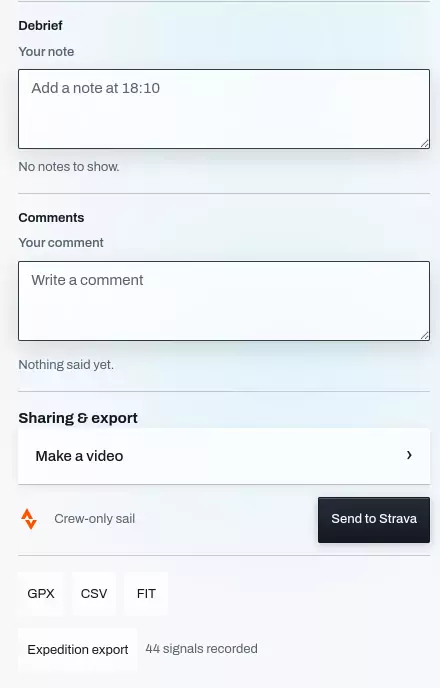
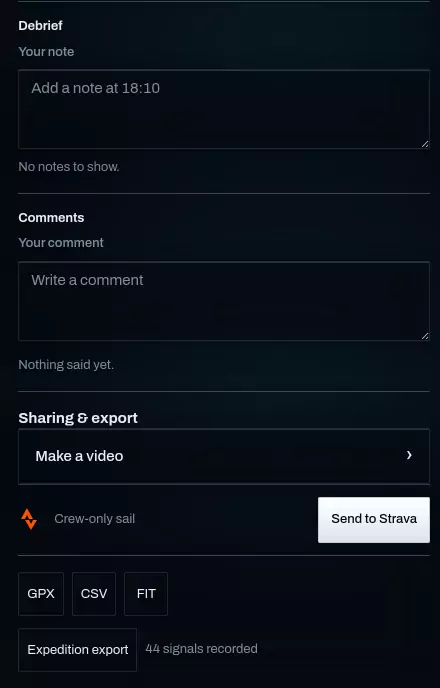
With One by one, press Send to Strava on the sail you want to share. With On their own, eligible sails go after Finish or Stop, or after the boat comes to rest. A notification tells you before the automatic send. This lets a sail recorded aboard reach Strava without a separate file export.
What Strava receives
The track, time and your optional heart rate.
The activity is sent as Sail, with the recorded track and time. You choose whether your own heart rate goes too when your watch recorded the sail. There is also a choice to include a link back to the sail in its description, so you can return to the fuller recording.
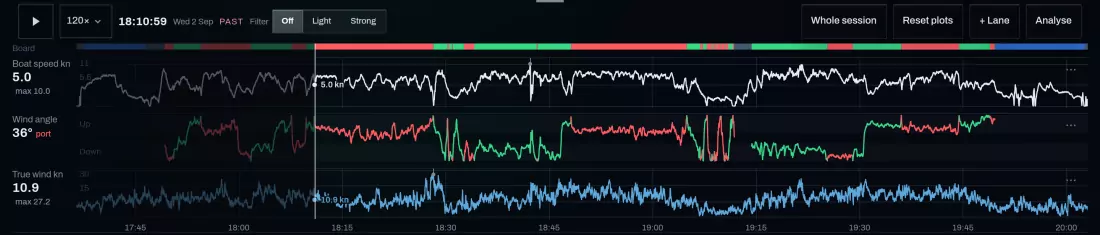
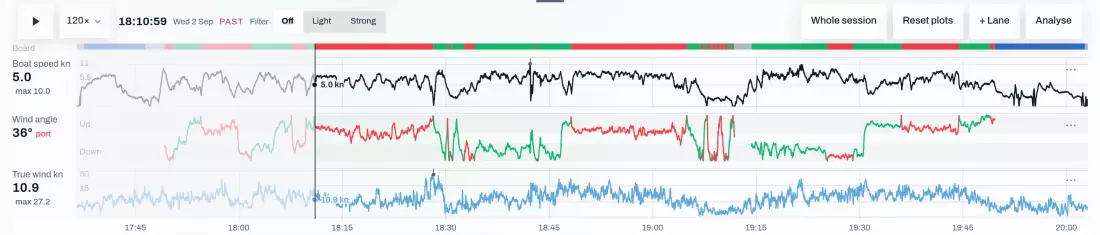
The boat’s instruments stay in Telltale. Keep using the Telltale session when you want wind, heel or other recorded instrument channels beside the track. Strava displays the activity according to your Strava privacy settings; check those settings for the audience you want.
Import your Strava activities
Pick the boat, then choose the activities.
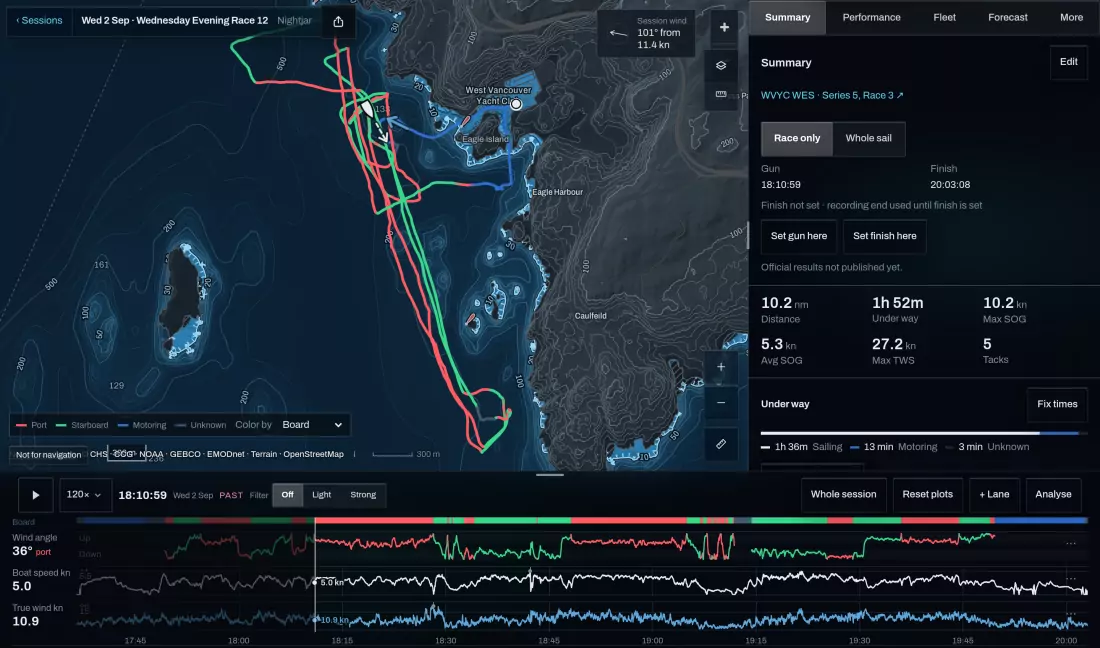
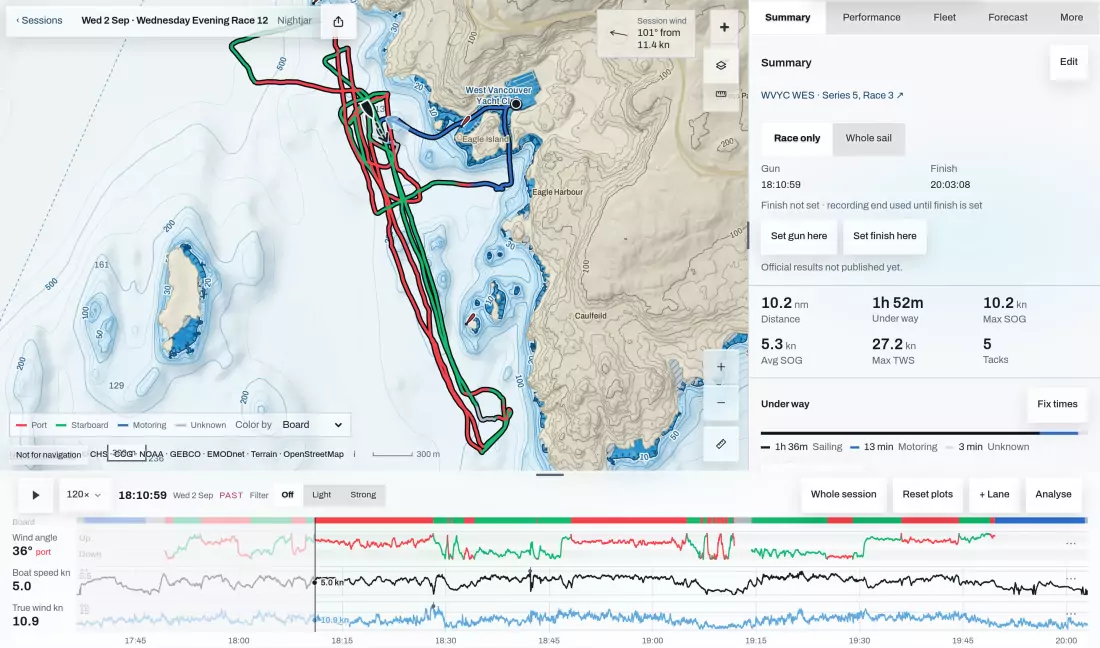
Open Sessions and press Import. In From Strava, use Connect with Strava if asked, then choose the activities to bring in. Water activities appear first, and Other activities holds the rest. Older lets you move back through your activity history when you are bringing in earlier sailing days.
An imported activity supplies time, position and speed for the track. It becomes a session on the selected boat. The import sheet tells you that sails brought into the boat’s log are seen by its crew, so check the destination before importing a personal activity. Each import gives a result you can check before moving on.
Bring new water activities in automatically
Set the destination once for future recordings.
In the import sheet, turn on New sails on Strava come in by themselves. New water activities on your Strava then come into the chosen boat. This suits a sailor who records elsewhere, saves the activity to Strava and wants the boat’s Telltale log to keep receiving those days.
Automatic importing and automatic sending are separate choices. Send my sails controls what leaves Telltale; the switch in Import controls what arrives from Strava. Strava settings shows the boat receiving new sails and offers Stop when you want to end that automatic import.
Import the original file
A file gives you another route into the boat’s log.
On strava.com, open the activity and choose ⋯ → Export Original. In Telltale, use Sessions → Import → Choose files and select the download. On a phone, you can share the file to Telltale instead. FIT, GPX, TCX and compressed .fit.gz activities are accepted, along with a ZIP of a season’s logs.
Direct Strava import brings the activity’s track rather than its original FIT file. Choose the original-file route when you want to import the saved recording itself. Telltale uses the supported readings present in that file, so the resulting channels depend on what the original device recorded.
Troubleshooting
Use a file if the direct connection is unavailable.
If the connection is full, use Join the waiting list in Import and bring in an original file meanwhile. An existing connection may allow sending only; connect from Import when you want Telltale to read your activities as well. Strava limits how many activities come in at once; press Import again for the next batch.
Races wait until the fleet finishes before automatic sending. A crew-only sail needs an explicit Send to Strava. If Strava stops accepting the connection, connect again. Check the message in the import sheet or Strava settings before trying another transfer.
Questions
Can I choose each sail before sending it?
Yes. Choose One by one under Send my sails, then press Send to Strava on each sail.
Can new Strava sails come in automatically?
Yes. Turn on New sails on Strava come in by themselves for the boat that should receive them.
Does connecting Strava also connect Garmin Connect?
No. Garmin Connect sync is separate from the Telltale Strava connection.
Can I import without a direct Strava connection?
Yes. Export the original activity file from strava.com and import it into Telltale.
Sources and review
Official references checked on 2026-11-23. Product details and schedules change; the provider’s page is the current word.