

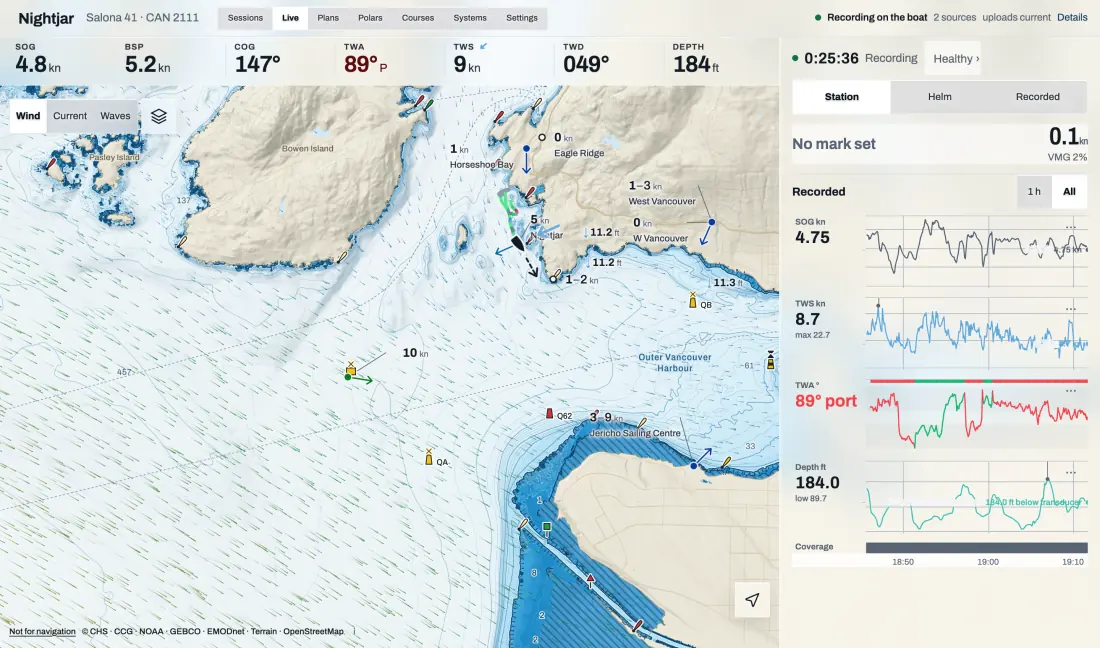
Live instruments through the DataHub
Use the hub already connected to the boat.
A DataHub or DataHub Pro reads the boat’s NMEA 2000 network and sends instrument readings over its Wi-Fi and LAN connection. Telltale receives that NMEA 0183 feed on a phone, Desktop or Gateway. Choose the recorder that will be aboard while you sail, then connect it to the hub’s network.
The route and polar workflows are separate from live recording. A PredictWind route can come into Telltale as GPX for a check on the chart and weather. The boat’s polars can go the other way as a text file. Together, these let you use the existing hub and move planning files between the two products.
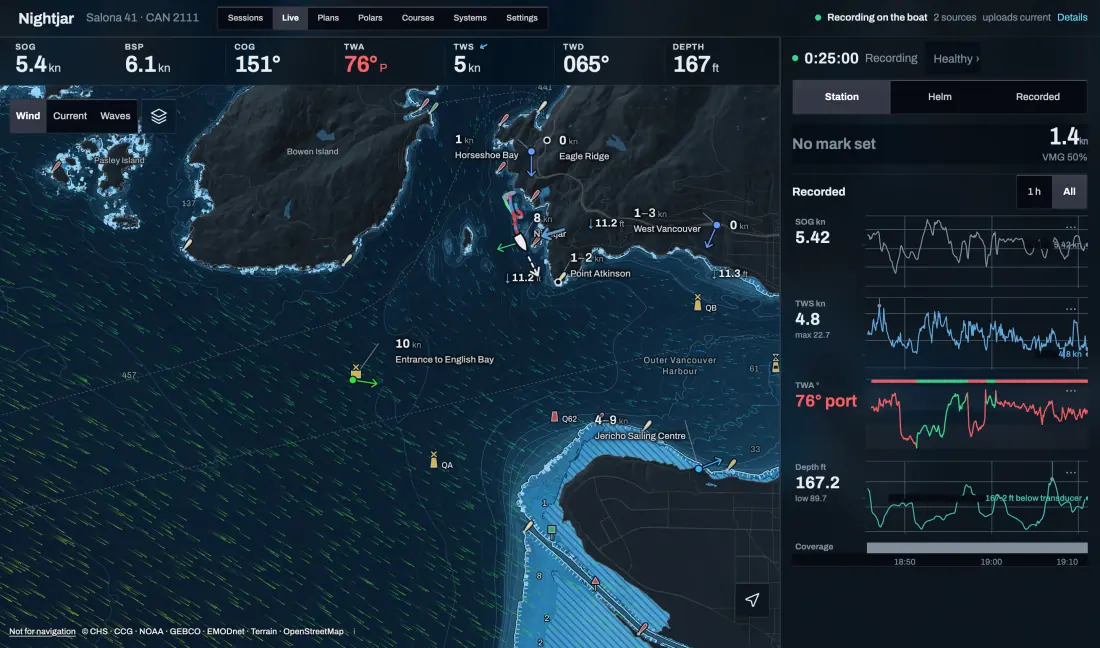
Connect on the boat
Join the DataHub network and look for instruments.
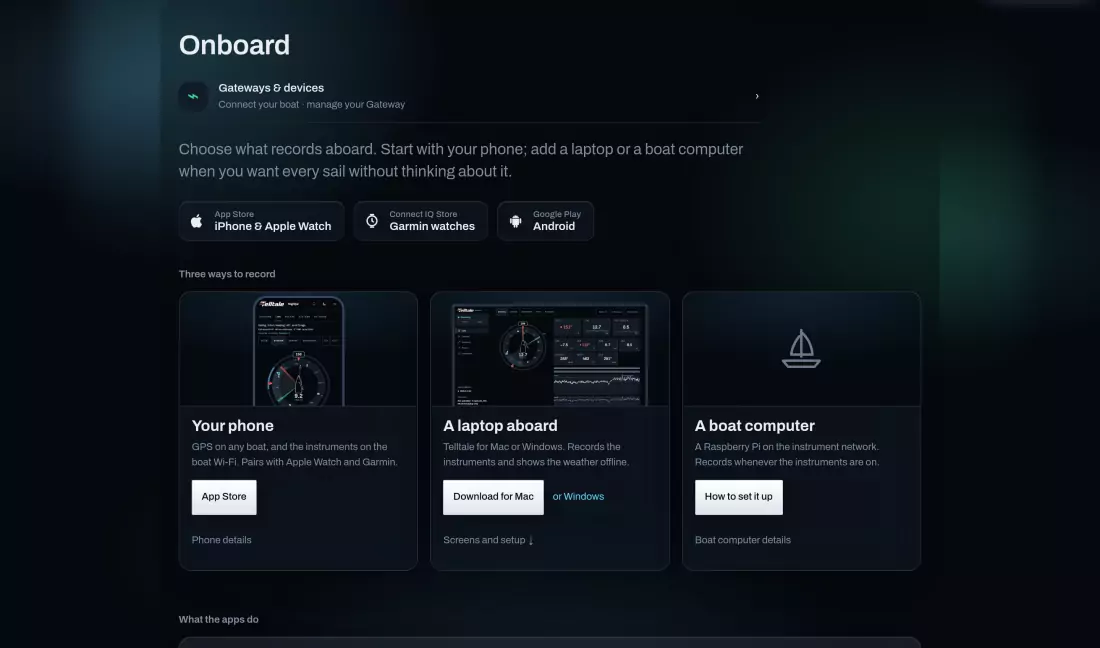
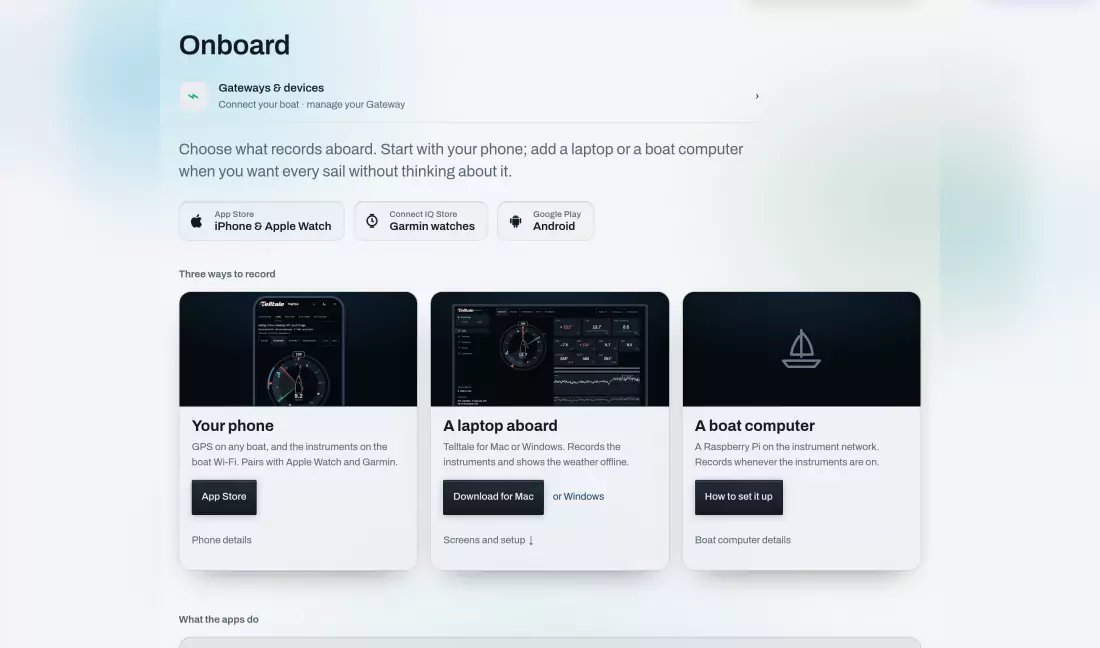
Connect the DataHub’s NMEA 2000 cable to the backbone. Join its Wi-Fi, named PW-Hub-XXXX, on the phone or laptop you will use to record. Telltale scans the DataHub’s live data connections, so the normal setup needs no address typed by hand. On the phone, open Record and use Look for instruments.
For a laptop, use Telltale Desktop; for a Linux boat computer, use Gateway. Both can receive the same feed. Telltale listens to the readings while the DataHub’s own tracking, logging and other connected apps continue. You can start with the hub already aboard rather than adding a separate instrument connection just to make a cruise recording.
What comes through
The available readings follow the boat’s network.
The feed can carry position, heading, boat speed, wind, depth, water temperature and the log. Pitch and roll, rudder angle, tank levels and AIS targets also come through as supplied by the boat’s bus. Check which instruments actually send readings on the network before deciding what you want to record.
Begin with values you can compare aboard: position, heading, speed and wind. Then check the other channels you expect. The DataHub supplies the feed, and Telltale records what arrives. Start with the readings present on this boat.
Wi-Fi and LAN connections
Use the address on the network you joined.
The standard DataHub address is 10.10.10.1. Its live feed uses UDP port 11101 or TCP port 11102, and Telltale scans both. These details are useful when checking a connection manually or asking for setup help. Stay on the DataHub Wi-Fi or its LAN connection while setting up the recorder.
If the phone is on a cellular router connected to the DataHub’s WAN port, use the DataHub’s WAN address instead. Find it under Services → Settings → System Status on the DataHub. That gives you the address reachable from the router’s network, which may differ from the hub’s usual address.
Check a PredictWind GPX route
Bring the planned line onto Telltale’s chart and weather.
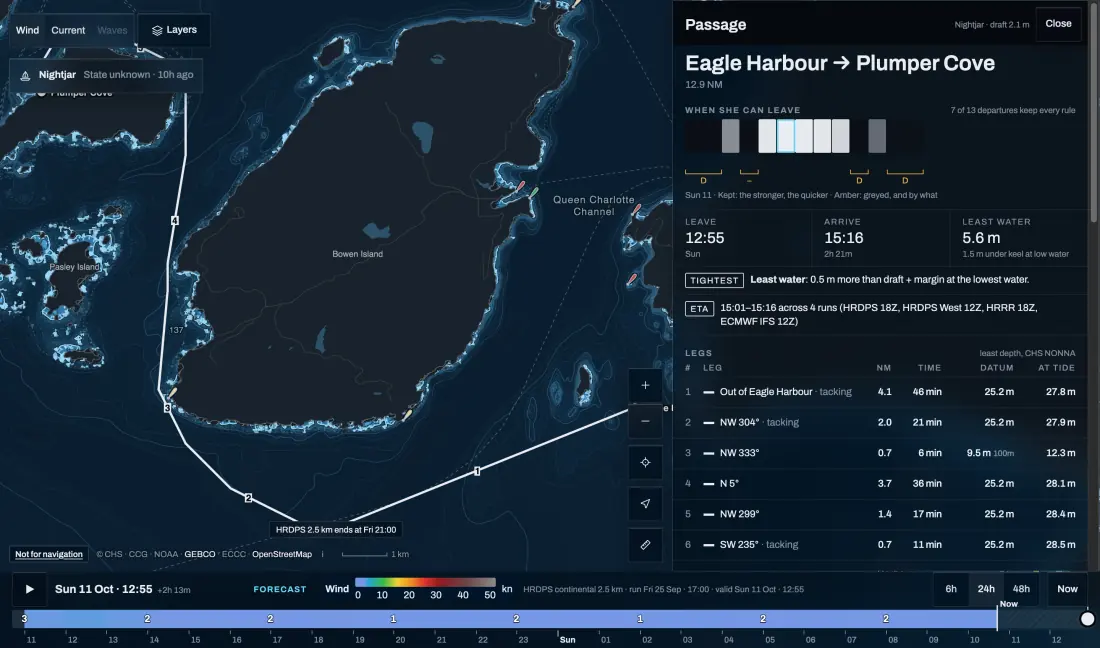
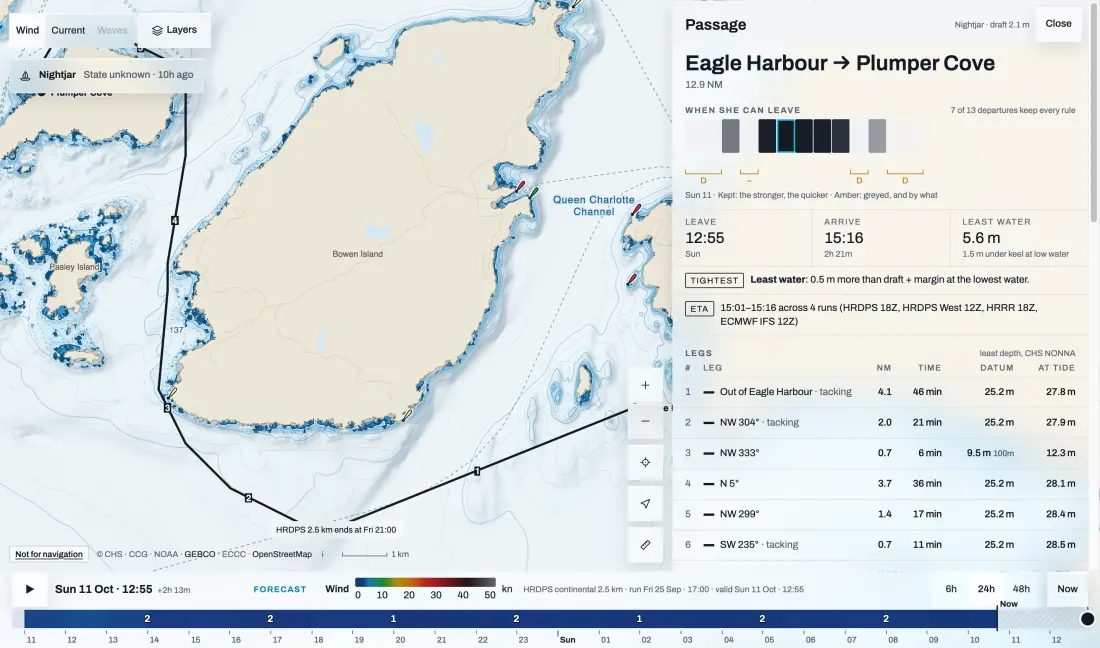
In Plan, choose Open a PredictWind GPX and select the route file. Telltale checks the imported route on its chart and weather. This is useful when the route was planned in PredictWind and you want to inspect it in the same place as the rest of your Telltale passage planning.
The route sharing controls also offer Check a PredictWind route. Use the file handoff to bring across the route you want to inspect. Keep the distinction between the planned route and the live instrument feed: opening a GPX moves a planning file, while connecting the DataHub brings readings from the boat.
Send the boat’s polars to PredictWind
Hand over the speeds used for planning.
Choose Send polars to PredictWind to hand over the boat’s polars as a .txt file. The control appears in the passage panel and, when available, the route sharing controls. Select the boat’s polar before using the passage-panel button; it needs a polar to send.
This handoff moves the boat’s performance data in the other direction from a route import. Use the polar you want PredictWind to work with, then use GPX when you want to bring a planned route back for checking. Neither step requires changing the live recorder connection to the DataHub.
Troubleshooting
Check the source first, then the freshness of the wind.
If Telltale finds the connection but receives no readings, open the DataHub at 10.10.10.1 and check Services → NMEA. Select NMEA 2000 on CAN0 for the boat network, or the built-in GPS for that source. Check the NMEA 2000 cable and that the instruments are sending data.
DataHub wind is a running average of the last 100 readings, so a shift can take a minute or more to appear. For racing analysis of tacks, VMG and shifts, record through a direct NMEA 2000 gateway on the same backbone instead. If a phone cannot find the hub, check local-network permission and Wi-Fi guest isolation.
Questions
Does this work with DataHub Pro?
Yes. Telltale can receive the DataHub Pro’s NMEA 0183 feed as well as the DataHub’s.
Does Telltale change the DataHub’s settings while recording?
No. Telltale listens to its live readings; setup changes are made on the DataHub.
Can I bring a PredictWind route into Telltale?
Yes. Open Plan → Open a PredictWind GPX and choose the route file to check it.
Does this connect PredictWind forecasts to Telltale?
No. The connections described here are the DataHub instrument feed and route and polar file handoffs.
Sources and review
Official references checked on 2026-11-23. Product details and schedules change; the provider’s page is the current word.