

Bring the camera files to the sail
Open a saved MP4 or MOV clip.
Telltale opens local video files against a recorded session. Choose Add your video from the sail’s actions and pick the GoPro clip you shot on that sail. The track and recorded instruments give the sailing context while the picture shows the boat, sails and crew at the same moment.
Use the camera’s own files from its card when you can. Those files keep the camera’s timing information and any telemetry it recorded. Put the clip on the device where you will review the sail, then open the session that covers the filming. This keeps the footage and sailing record together for the review.
Line up the camera and the sail
Camera time gives the starting point.
Telltale reads the video’s timing information and, where present, the GPS UTC start stored in GoPro telemetry. That gives the clip a place within the sail. The aim is straightforward: when the picture reaches a tack, the boat’s track and recorded channels should reach that same tack.
Check a clear turn when reviewing the match. The camera clock is useful, and the motion recorded inside the file can help refine it. The session remains the source of the boat’s instrument readings; the video supplies the picture and its own timing and motion information. Keeping those together makes a manoeuvre easier to revisit.
Use the movement in the clip
Camera gyro readings can help match the turn.
When a GoPro file contains gyro telemetry, Telltale can compare the camera’s movement with the boat’s recorded turns or heel changes. A camera fixed to the boat sees the same movement. That gives another way to refine the timing beside the camera clock, using a change both recordings can see.
This is useful for a tack or a roll that is clear in the sailing data. The camera’s mounting direction can vary, so the match checks the available directions of movement. Open the matched clip against the sail and review the manoeuvre with the instrument record at the same moment.
Read the boat’s instruments over the picture
The sail supplies the sailing numbers.
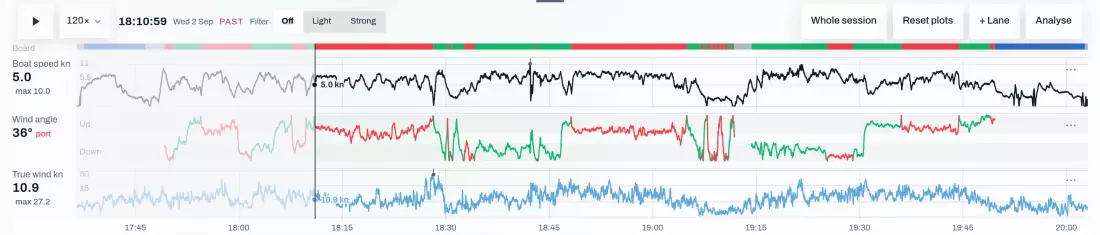
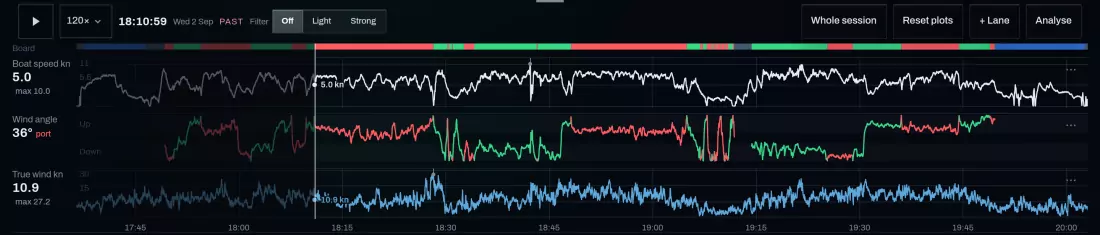
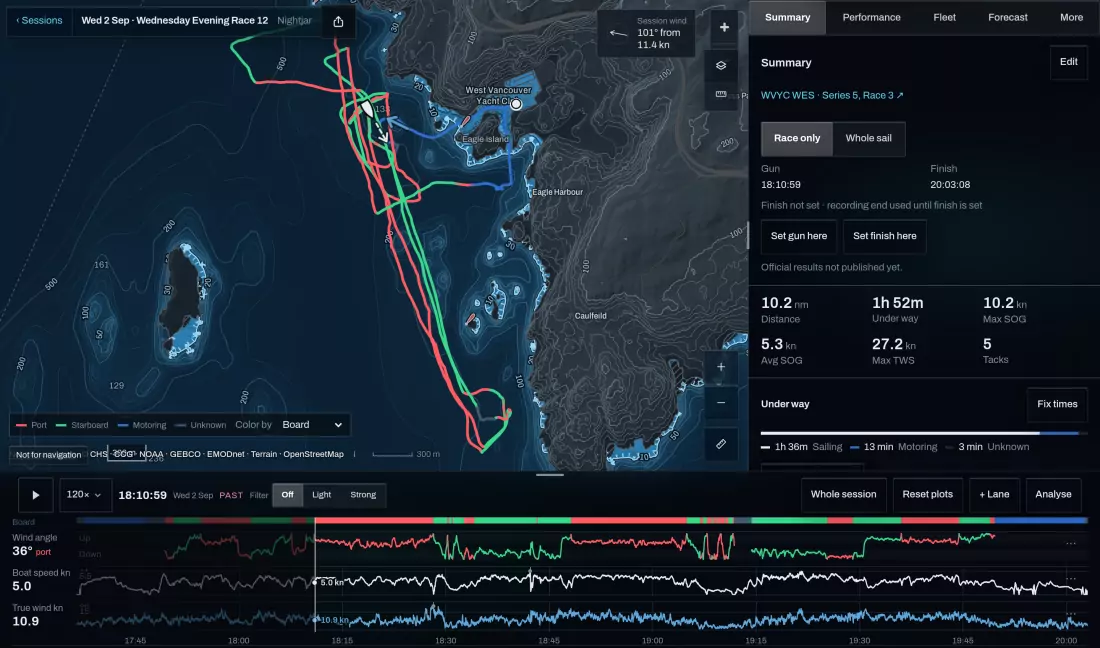
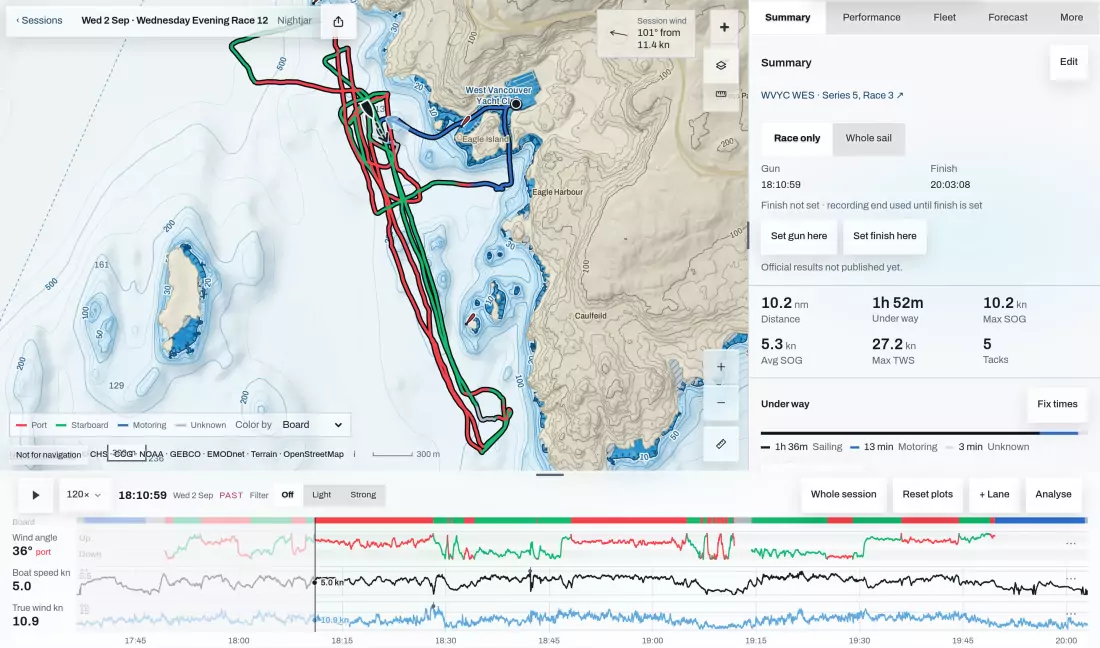
The session’s recorded speed, heading, heel or wind can be shown with the footage when those channels were recorded. Use the picture to see what the crew did and the instrument record to follow what the boat did. Start with one manoeuvre and look at the readings before, through and after it.
For a coach or crew debrief, this gives the discussion a common reference. You can return to the same moment in the clip and on the track instead of trying to remember which tack a number belonged to. Choose a sail with the recorded channels you want to discuss, then bring its footage into that session.
Make a video from the clips
Choose the shots you want to use.
From the session’s actions, choose Make a video. The editor opens with Drop your clips here and lets you choose files from the device, Photos or Files. A connected camera appears under Files. Bring the camera originals in when available so the editor has their timing information to work with.
The original files stay on the device until you render; only the selected shots upload. Use the session playback for reviewing a clip and Make a video when you want to choose shots for a finished video. Both start from footage you already filmed on the sail.
Troubleshooting
Keep the original and check the timing.
Exports from the GoPro app work too, but lose the camera clock. Use the original file if an exported clip does not line up as expected. Gyro matching needs camera motion and a corresponding boat heading or heel record; without a useful match, it cannot refine the timing.
GPS timing and telemetry depend on what the file contains. This is not a promise of GPS on every GoPro or compatibility with every HERO model. These are video-file tools, with no remote-camera connection or shutter control.
Questions
Can I open a GoPro clip on an existing sail?
Yes. Open the session, choose Add your video and select the local MP4 or MOV file.
Can Telltale use the camera’s telemetry for timing?
Yes. It reads available GoPro GPS timing and gyro telemetry to help place the clip against the sail.
Does the camera supply the boat’s wind readings?
No. The instrument readings shown with the footage come from the sail’s recording.
Does adding a clip upload the whole original?
No. Session playback uses the local file; in Make a video, only the selected shots upload when you render.
Sources and review
Official references checked on 2026-11-23. Product details and schedules change; the provider’s page is the current word.