

What works
Review a saved Expedition sail or record its readings live.
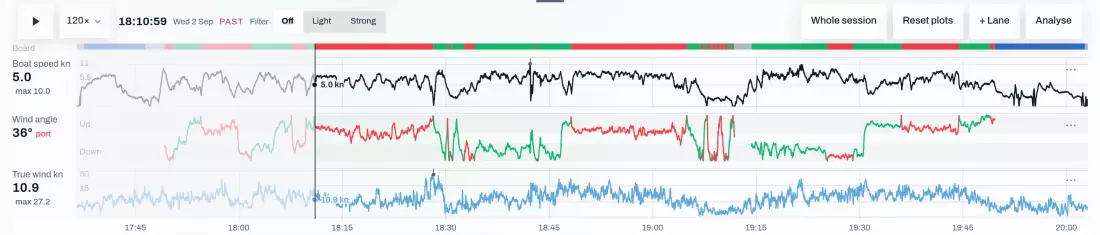
Telltale reads daily files from Expedition’s log folder and its extracted CSV. It accepts the wide log layout used through 11.15 and the sparse layout from 11.16. Import on the web, phone or Desktop, using the original log or the extracted data file.
For live readings, enable Expedition’s TCP or UDP output. A phone, Desktop or Gateway can receive that feed. Choose the output and port in Expedition, then join its network. Desktop also imports Expedition marks CSV files.
| Route | Use |
|---|---|
| Daily log | Import an existing sail |
| Extracted CSV | Import exported log data |
| TCP or UDP | Record the live network feed |
| Expedition marks CSV | Import marks in Desktop |
What comes through
Bring wind, motion and instrument loads into the same session.
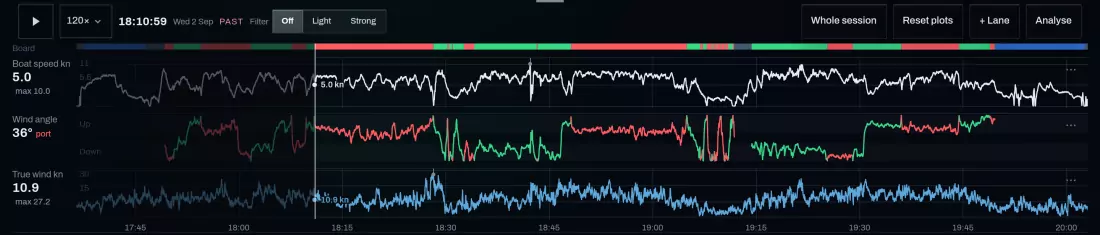
Telltale reads boat speed, apparent and true wind, heading, position, speed over ground and course over ground. It also reads air and water temperature, pressure, depth, heel, trim, rudder, forestay load, voltage and turn rate. A saved log or live output supplies the readings Expedition has included.
Other named Expedition channels can stay in the archive without appearing as instrument readings in Telltale. Keep the original log when asking about a missing quantity, with its channels and saved values intact.
Bring in a daily log
Import daily logs without rebuilding them in a spreadsheet.
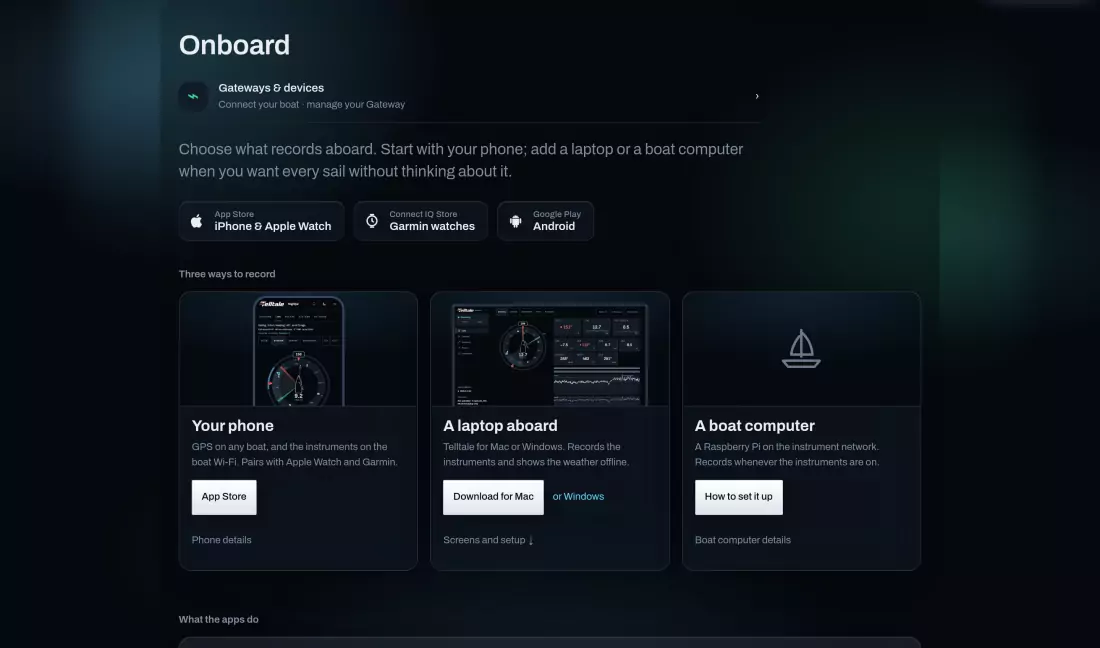
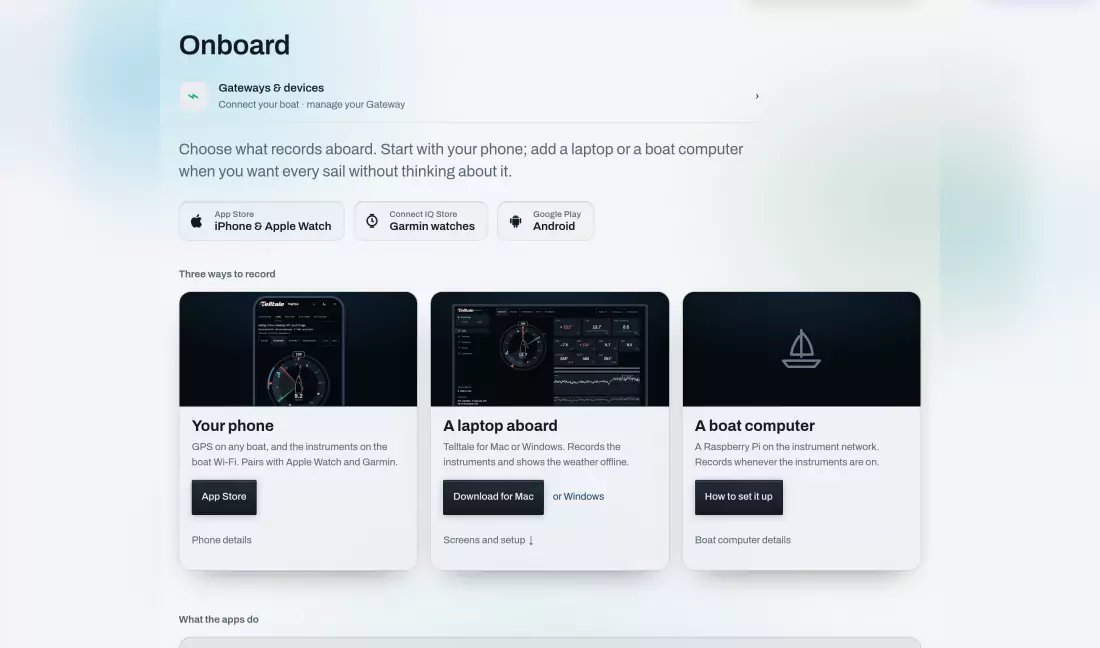
Open Import, then Get the file → Expedition. Follow Extract the log, format CSV, or use the daily log Expedition writes. Use Choose files to import the data; chart images and screenshots contain no instrument log.
Both layouts import directly: older logs use named columns; newer logs save channel numbers and values. Telltale also accepts repeated headers when Expedition restarted during the day. Leave those headers and the original layout in place instead of expanding or rewriting the file.
Listen to Expedition live
Record Expedition’s output on the laptop or across the boat network.
Enable network output in Expedition’s Instruments window. With TCP, Telltale connects to Expedition; with UDP, it receives the data Expedition sends. Set the same port in both apps and use a network that allows the traffic. Use the same laptop or another recorder on the boat network.
Telltale offers port 5010, but Expedition does not require it. Use the port the navigator selected, together with the matching TCP or UDP choice. Before sailing, check the readings: an open connection may carry only some instruments.
Time and bearing references
Review bearings and wind angles with their original references.
Telltale treats Expedition bearings as magnetic and port wind angles as negative. These conventions stay with the readings. When comparing a log with another display, match the bearing reference first: a difference between magnetic and true bearings can look like a change in the boat’s motion.
Telltale reads the date format used in the supported daily logs. A newer DateTime format still needs a verified sample before it can be accepted. If an import rejects the times, keep the original file and Expedition version details; editing the time column can remove the evidence needed to resolve it.
Files back to Expedition
Send sessions, marks and target polars through their own file choices.
Choose Expedition in a session’s Download options to export session data. Its position in the menu varies with the screen layout. Desktop also imports marks through Choose a GPX or Expedition marks file. Use that chooser for marks and the log importer for readings.
Target exports include an Expedition heel polar and custom apparent-wind-angle and apparent-wind-speed value polars. Each wind band needs both upwind and downwind modes; bands missing either are left out. These target files are separate from session downloads and marks.
Troubleshooting
Resolve a silent feed or refused log from the original setup.
For a silent live connection, check Expedition’s output, TCP or UDP choice, port, boat network and computer firewall together. The port selected in one app must match the other.
For an import problem, bring the original daily log or extracted CSV, including its headers and time column. Include the Expedition version and describe the import problem.
Questions
Which daily log layouts work?
Telltale accepts the wide layout through Expedition 11.15 and the sparse layout from 11.16, including repeated headers within a day. The file must use a supported date format.
Must I use port 5010?
No. Use the port selected in Expedition and match TCP or UDP as well as the number; Telltale offers 5010 as a starting choice.
Can Telltale ping the line in Expedition?
No. Telltale only reads Expedition’s output; set the start, ping the start line and move marks in Expedition.
Can I export a session to Expedition?
Yes. Choose Expedition in the session’s Download options; marks and heel or apparent-wind value polars have separate file choices.
Sources and review
Official references checked on 2026-11-23. Product details and schedules change; the provider’s page is the current word.