

From the console to the coast
Use the custom Ecowitt upload.
Telltale’s Ecowitt setup names WS2910, WS3900, HP2560, GW1100 and GW2000 consoles and gateways. The console sends its observations over Wi-Fi and the internet to an address made for your station. You set that destination in WSView Plus on the console’s network.
This suits a weather station that is already standing beside the sailing water. A sailor checking the bay gets a measured wind to put beside the model forecast.
Set the custom destination
Copy the three settings from Telltale.
Open station connections, choose the WSView Plus row and name the station. Choose Get the upload address. Leave those settings open while you configure the console. On your phone, join the same Wi-Fi as the console and open WSView Plus. Tap the console in Device List, then Weather Services.
Tap Next until you reach Customized, switch it On and set Protocol Type to Ecowitt. Copy Server, Path and Port exactly as Telltale shows them. Set Upload Interval to 60 seconds and save. Return to Telltale to check the reading before moving on to the station’s location.
Froggit, Misol and Fine Offset
The same Ecowitt-protocol setup is the connection.
Froggit, Misol and Fine Offset models that offer this Ecowitt-protocol custom upload work through the same WSView Plus setup. Use the console’s actual custom-upload choices to identify the route. These names describe the shared setup, rather than separate claims that each rebadged model has been tested.
The details that matter at this step are the console’s protocol choice and the server, path and port shown by Telltale. A brand badge on the console is not enough: the upload settings are what connect it.
What the station sends
Wind, gusts and direction at a fixed place.
Telltale accepts the console’s wind speed, gust and direction, together with outdoor temperature and sea-level pressure when supplied. Those observations give the station a weather record. Compare the wind with the console after saving the custom destination, and check that the reading time is advancing.
The one-minute upload setting tells the console when to send. Read the wind and gust as the station reports them rather than treating every upload as a separate change in the weather.
Show where the sensor stands
Give sailors the site as well as the speed.
Place the ring on the weather station, enter its rough height and choose its mount: Shore, Dock, Roof or Garden. Give it a name a nearby sailor can recognise. Choose Everyone for a public page and shareable link, or Only me to keep the readings private.
An exposed shore or dock reading can help correct local forecast wind. Roof and garden readings stay out of forecast correction because shelter at a house can give a different wind from the open bay. The station still has its own page. Describe the installation as it stands so its wind is used appropriately.
Use the reading before sailing
Put the weather at the club beside the weather offshore.
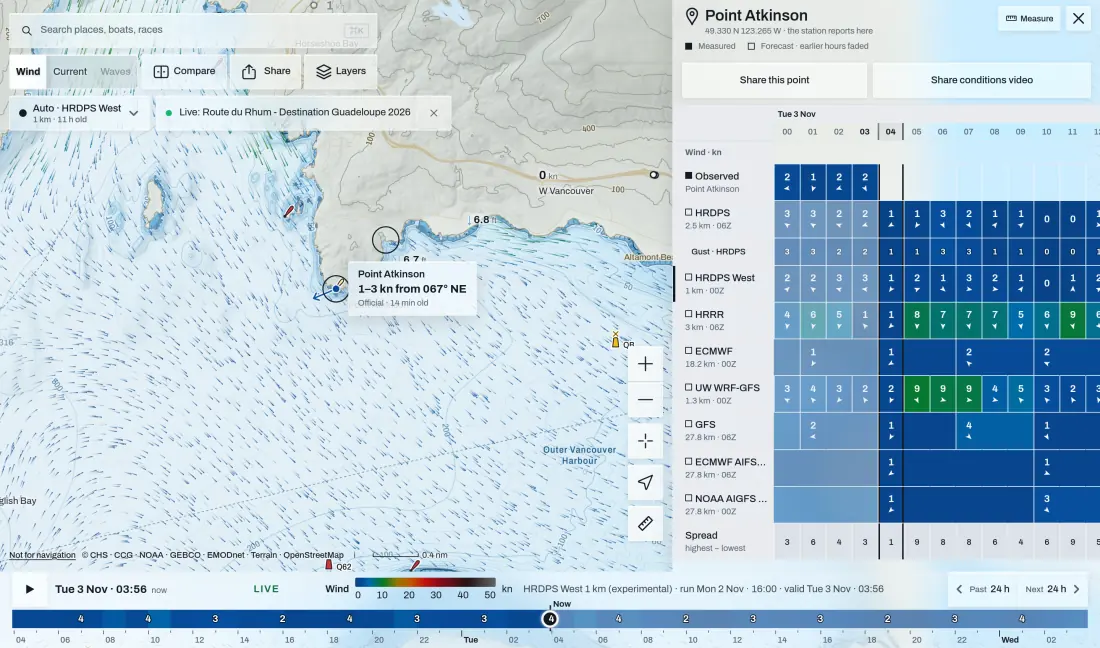
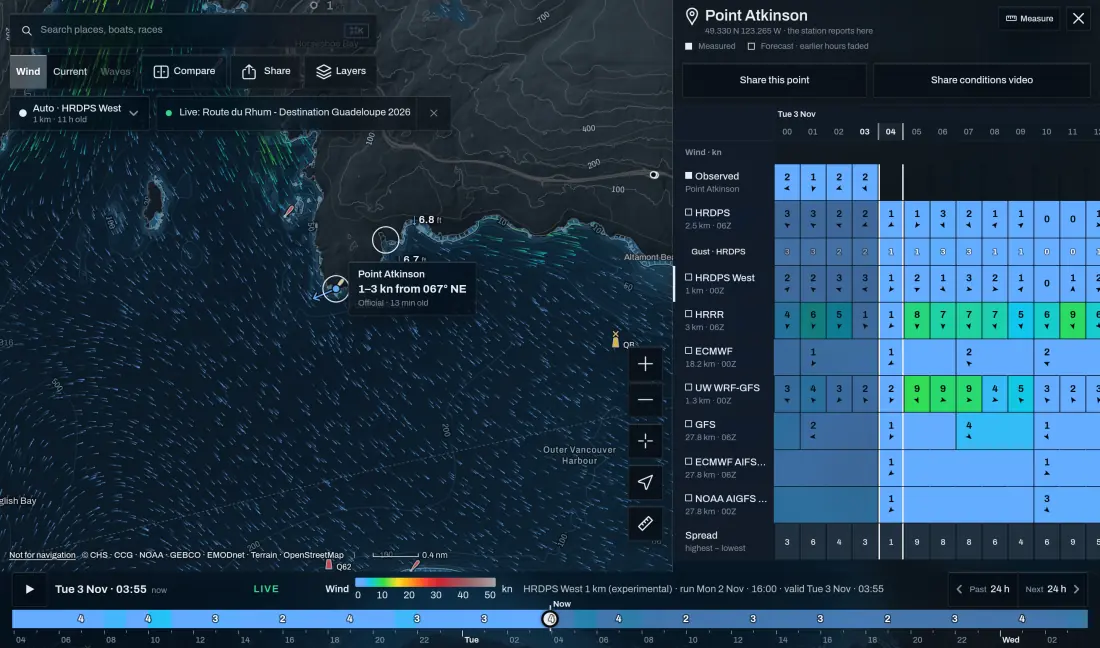
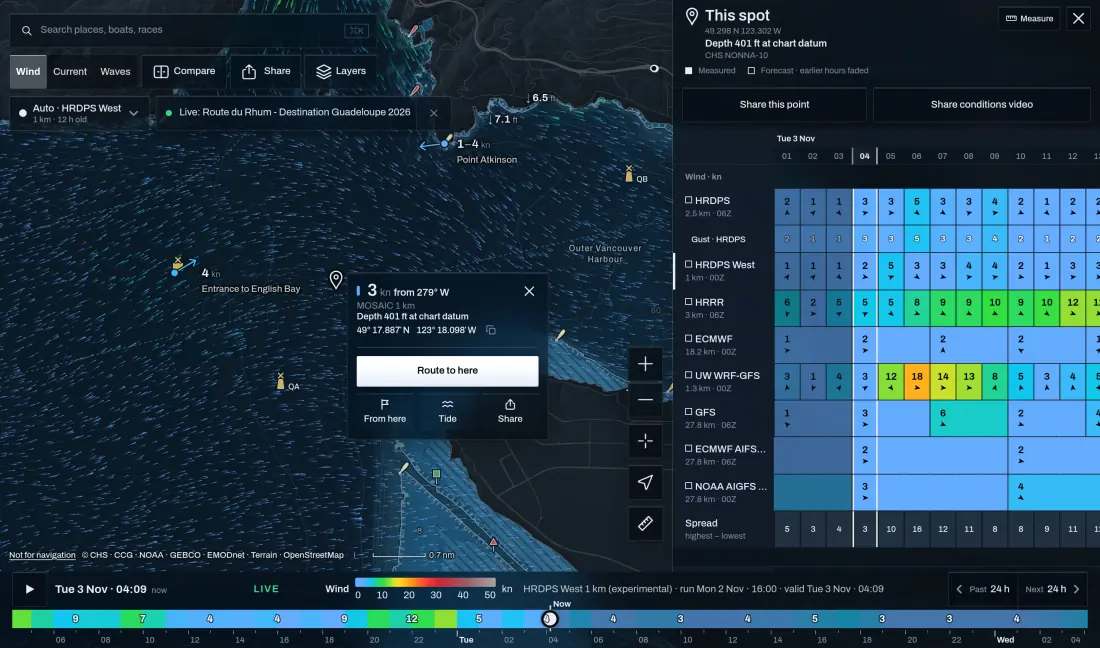
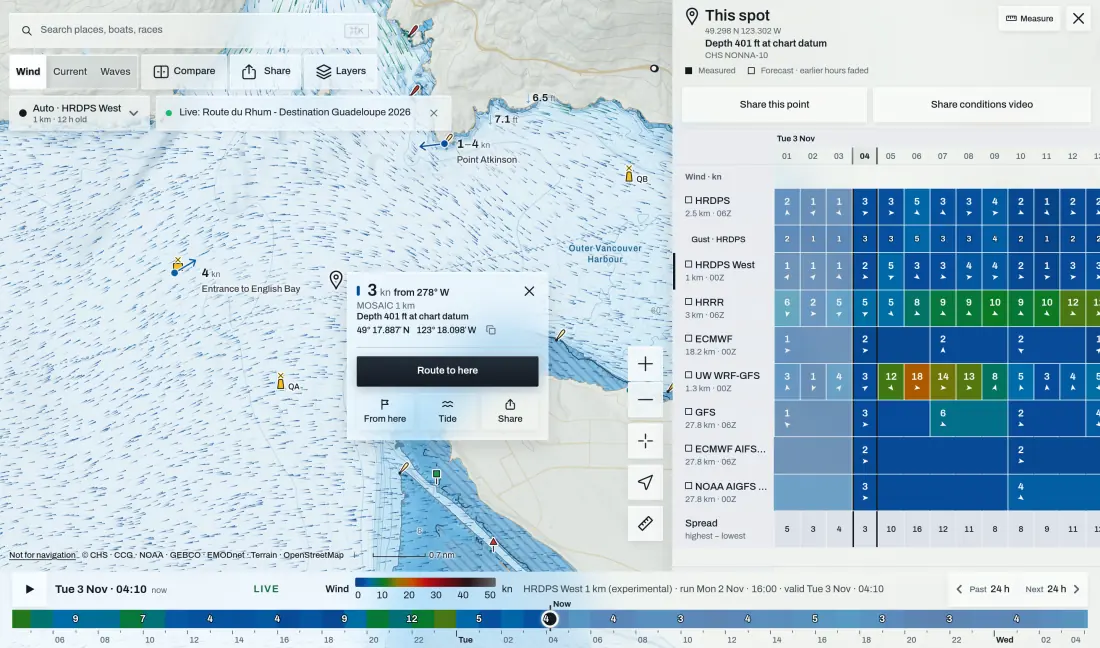
In Conditions, tap a station to compare what it measured with each model for the same hours. Then tap the water along the intended sail to inspect the forecast there.
Live adjust uses fresh suitable station readings to nudge the wind forecast nearby. The correction fades as the reading gets older and as you move away. The forecast correction guide explains that reach. Sharing an exposed station adds a local observation for the crews using those waters.
Troubleshooting
Check protocol, port and path first.
Use WSView Plus, rather than the Ecowitt app, for this setup. Protocol must be Ecowitt, port 80, with the path copied exactly from Telltale. Check the console’s Wi-Fi connection and save again, then allow a minute for its next upload.
Ecowitt share-page links cannot be read through this connection. Use the console setup. A clock far ahead or behind, or an implausible wind reading, can also stop an upload being accepted. A new public station needs a steady record of readings before it joins the Conditions map; check its page while it settles in.
Questions
Do I need to paste an Ecowitt cloud key?
No. This connection uses the console’s custom upload settings.
Can a Froggit use this setup?
Yes, when its console offers the same Ecowitt-protocol upload through WSView Plus.
Can I keep the station private?
Yes. Choose Only me when setting who sees it.
Where do I find the server and path?
In Telltale’s station connection flow, choose Get the upload address.
Sources and review
Official references checked on 2026-11-23. Product details and schedules change; the provider’s page is the current word.