

Your Davis station on the sailing map
Use the WeatherLink connection you already have.
Telltale connects Davis Vantage Vue and Vantage Pro2 stations shown at weatherlink.com, with a WeatherLink Console, WeatherLink Live or Envoy. The connection reads the station through WeatherLink. Start by opening your own station there and checking that it is reporting the weather you see outside.
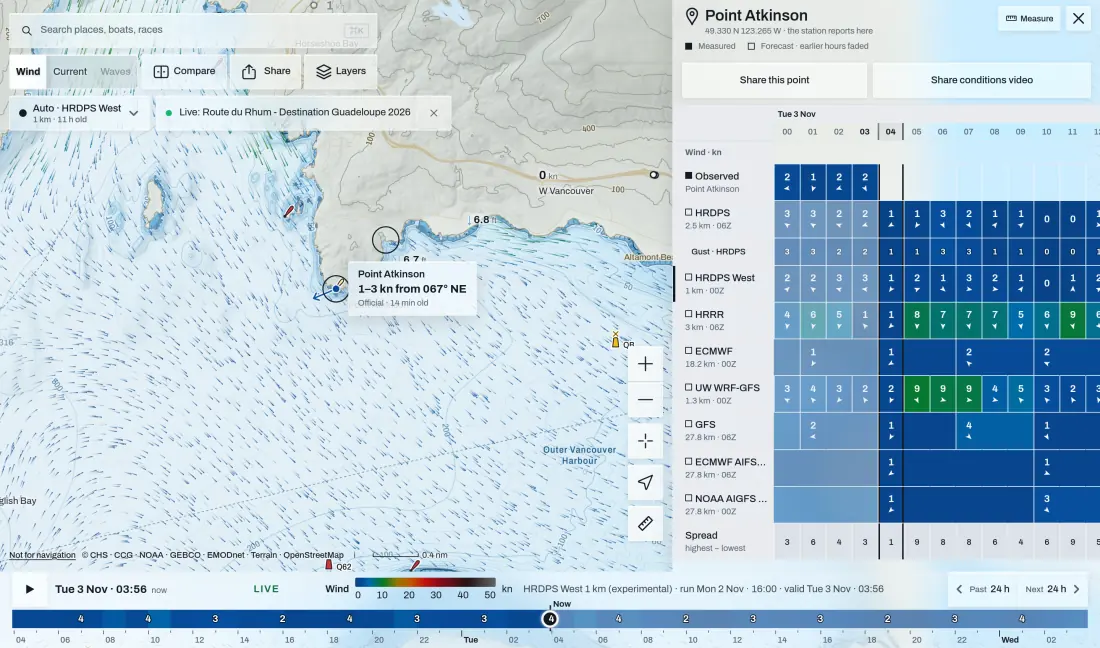
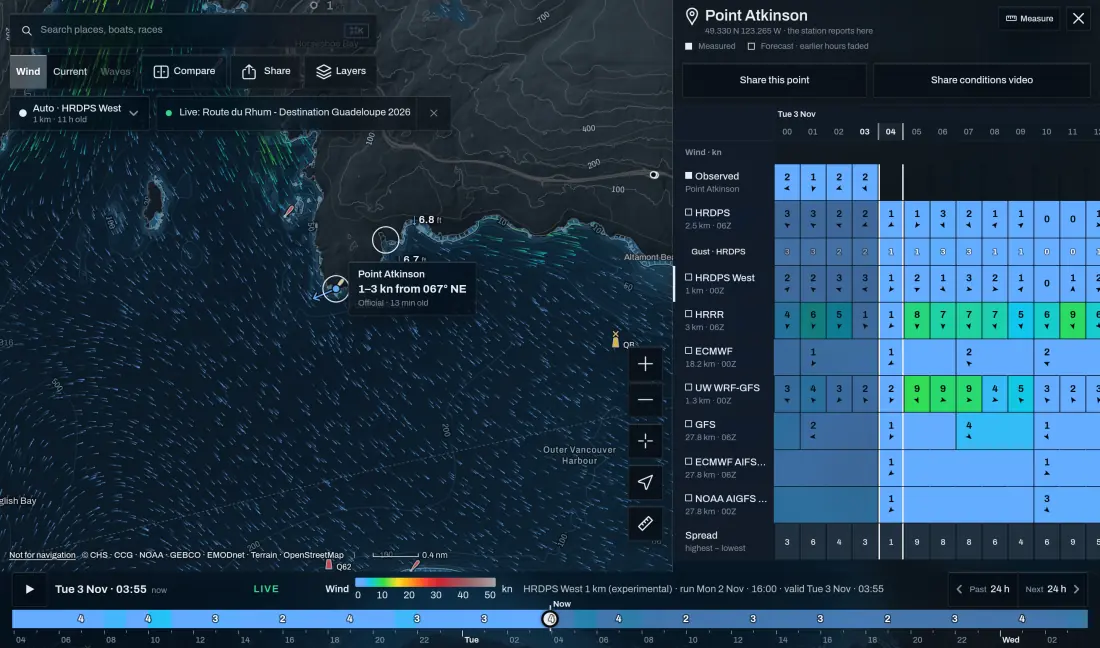
For a club or marina, the useful result is a fixed reading beside the sailing water. A crew looking at Conditions can compare the wind at your station with the forecasts before leaving the dock. The station gives that comparison a measured reference at a known place.
Connect with your WeatherLink key
Make the key in the account that owns the station.
Open station connections in Telltale and choose Vantage Vue or Pro2, on WeatherLink. Sign in at weatherlink.com on your phone or computer. Open Account, then Generate v2 Key, and copy the key and secret into the two boxes in Telltale. Follow the connection through to the station and its place.
You are connecting the weather station on shore, so use its position rather than the boat’s berth or the club office.
Use a public page instead
A WeatherLink page can be linked without a key.
Choose A public WeatherLink or Ambient page in station connections. Open the station’s public WeatherLink page in a browser, copy the address and paste it into Public page link. The WeatherLink address has embeddablePage/show in it. Telltale reads the weather already shown on that page once every few minutes.
Check the page in a browser where you are signed out before copying the address. Then place the station on the map yourself if the page does not supply its position.
Read the wind with its gusts
The WeatherLink key connection brings the weather together.
The key connection reads wind speed, gust, direction, outdoor air temperature, sea-level pressure and the reading’s time. Wind speed uses the last ten minutes’ average where available, falling back to the latest speed. The gust is the highest wind in that ten-minute window.
Look at the mean and gust together before sailing. The mean describes the broader wind at the sensor; the gust shows the stronger wind within that window. Keep the time in view when comparing the station with a forecast.
Place it and choose who sees it
The mount matters as much as the brand.
Give the station a name sailors will recognise, place it where the sensor stands and enter its rough height. Choose Shore, Dock, Roof or Garden to describe its mount. Everyone gives the station a public page and shareable link. Only me keeps its readings private and out of the public map and forecast.
An exposed shore or dock station can help correct local forecast wind. A roof or garden station still has value as a record of that site, but its sheltered wind does not correct the forecast over the bay. Choose the mount that describes the installation, even when the water is close.
What a sailor nearby gains
A measured wind beside the model wind.
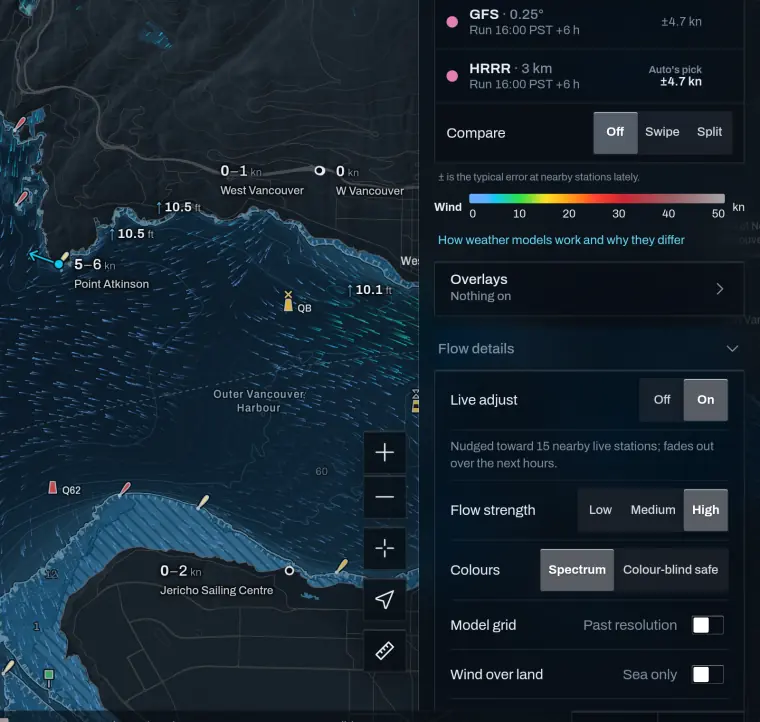
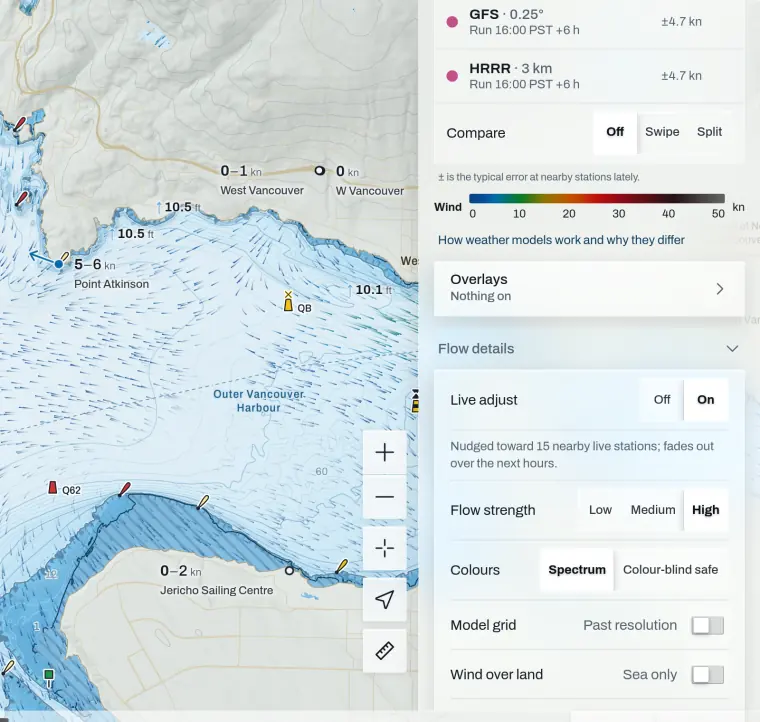
Open Conditions and tap a station to put its observations beside each forecast for the same hours. Use that comparison to see whether the breeze has arrived where the station stands.
Forecast correction compares fresh measurements with model wind and nudges the local forecast toward them. The influence fades with distance and time. Read the forecast correction guide for how that works; a station adds evidence near its site rather than measuring every part of the sailing area.
Troubleshooting
Check the connection before changing the station.
For the key connection, use credentials from the station owner’s WeatherLink account. For the public-page connection, the page must open without signing in. A private page or an ordinary account page cannot stand in for the public station link.
A new public station needs a steady record of readings before appearing on the Conditions map. Its page works during that period. Check the page for arriving wind first, and use the support contact if the connection still needs help.
Questions
Can I connect a Vantage Vue?
Yes. Use its WeatherLink connection, just as for a Vantage Pro2.
Do I need a key for a public page?
No. Paste the public WeatherLink page address into Public page link.
Can the club share the station page?
Yes. Choose Everyone to get a page and link members can open.
Can I set it up on my phone?
Yes. Open station connections in Telltale and follow the WeatherLink steps.
Sources and review
Official references checked on 2026-11-23. Product details and schedules change; the provider’s page is the current word.